

Our products

Electronic Signature

Collection of Payments

Companies

Small Businesses

Medium Businesses

Large Companies

Industries and departments

Legal Services

Construction

Accounting

Government and Municipalities

Education

Human Resources

Sales

Industries and departments

Legal Services

Construction

Accounting

Government and Municipalities

Industries and departments

Education

Human Resources

Sales

Developers

API Pricing

API Documentation

Our sales team is here to help you explore the right plan for your needs and answer any questions you may have.

Read more

About EzSign Icon

About Us

Customer Testimonials Icon

Customer Testimonials

Blog Icon

Blog

FAQs

How to

Icon tutorials

Tutorials

Video Guides Icon

Video Guides

Get Support Icon

Contact

How to Sign

Compare

Versus Icon

eZsign vs Docusign

Versus Icon

eZsign vs Acrobat Sign

30 Days Free - No Credit Card Needed!

30 day free trial, no credit card required

Signing guide

How to sign a document

Here’s how to sign and get back to your day.

Step-by-step

No app to download, no account to create. Just your email and a few clicks.

1

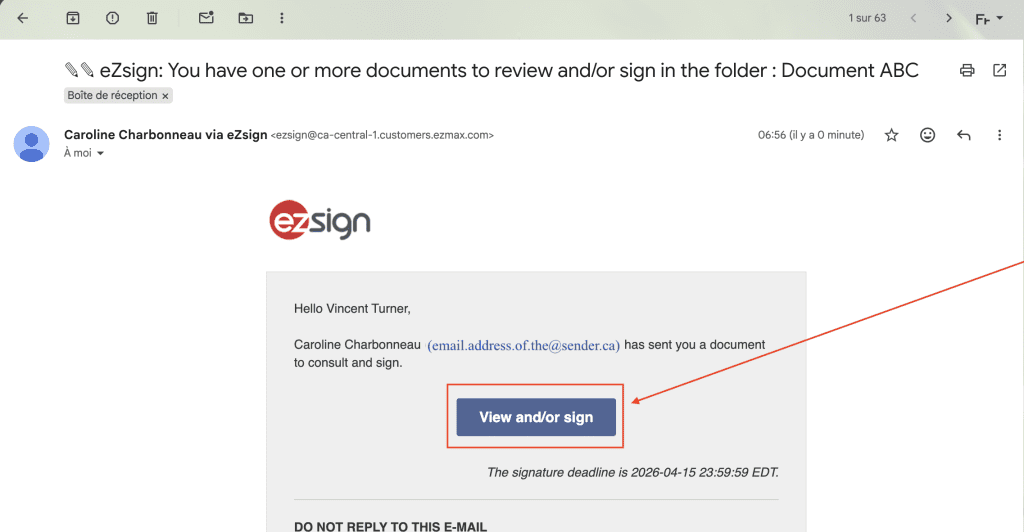
Open the email

Click the button to access the document. No download and no account required. The document opens securely in your browser. 

2

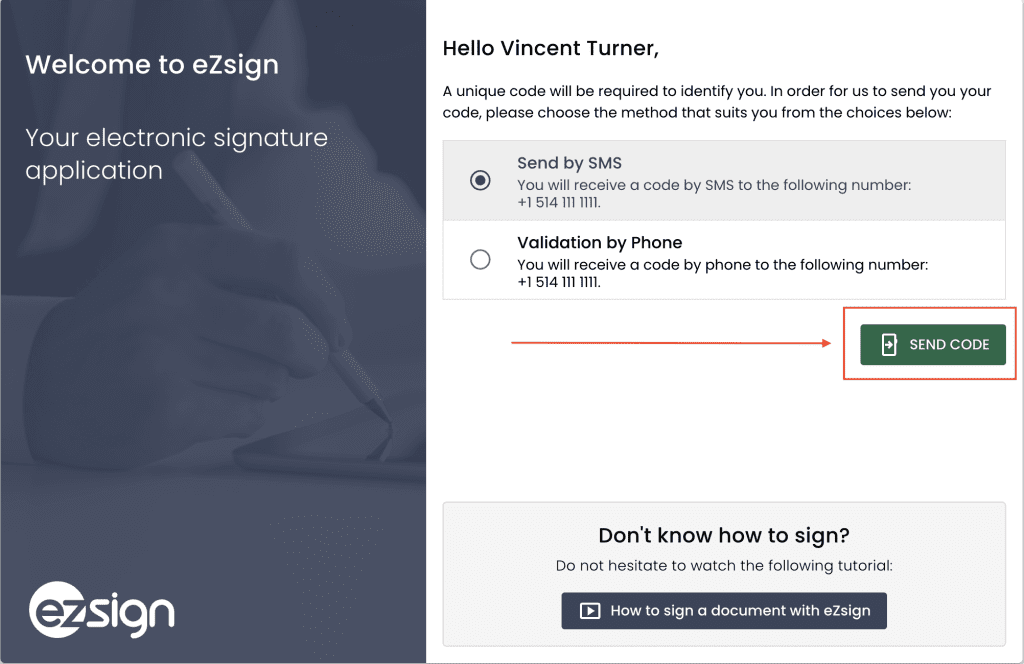
Verify your identity

Depending on the sender’s settings, you may be asked to enter a quick code sent by SMS. It only takes a few seconds and helps protect everyone involved. If no verification is required, you can move on to the next step.

3

Review the document

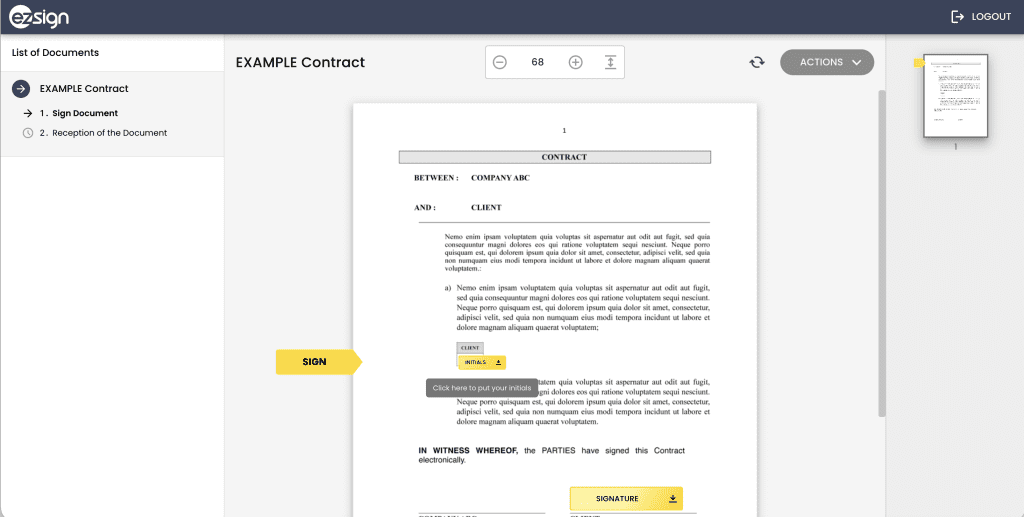
Scroll through the document. Any field that requires your signature or initials will be clearly highlighted.

4

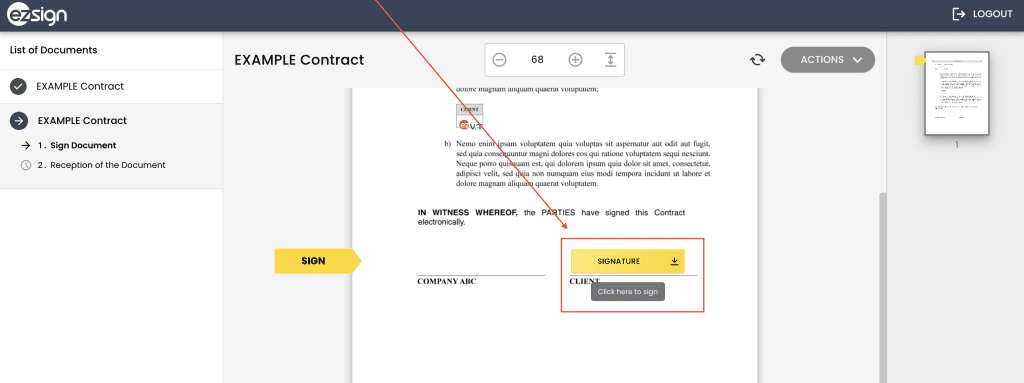
Click each field to sign

Click on each highlighted field to add your signature or initials. Repeat until all required fields are completed.

5

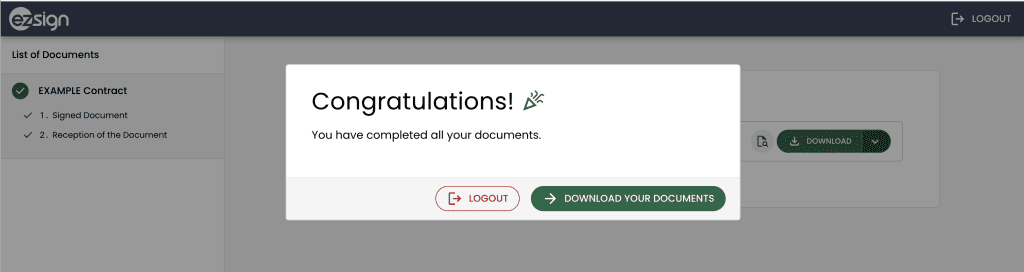
Finish and check your inbox

Once all fields are completed, your can download your signed PDF and a copy is also sent directly to your inbox. It’s legally binding, court-admissible, and stored in Canada.

Frequently asked questions

The ones we get asked constantly. Answered straight.

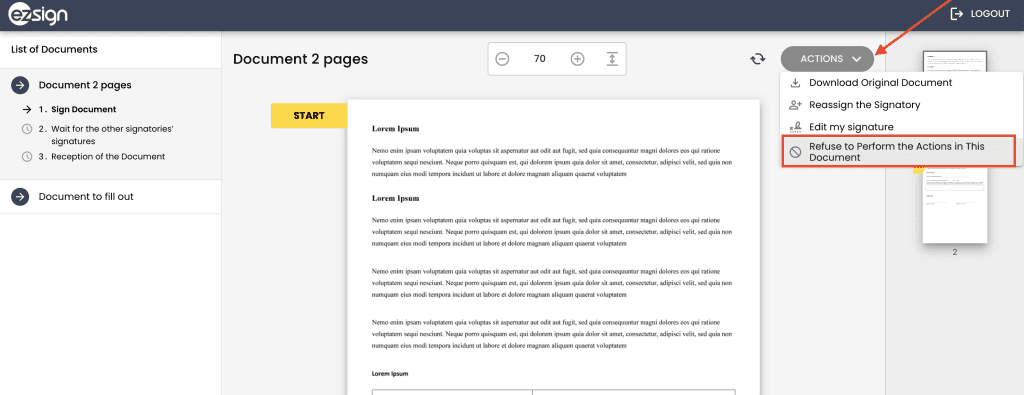
When signing, you can refuse to complete or sign a document.


To do so, click the icon “Actions’ in the upper right corner and select the “Refuse to Perform the Actions on This Document” option.


A window will appear allowing you to indicate the reason for your refusal.

Once the refusal is submitted, the document sender automatically receives a notification including the reason provided.

The document will then be considered incomplete and will remain unsigned.

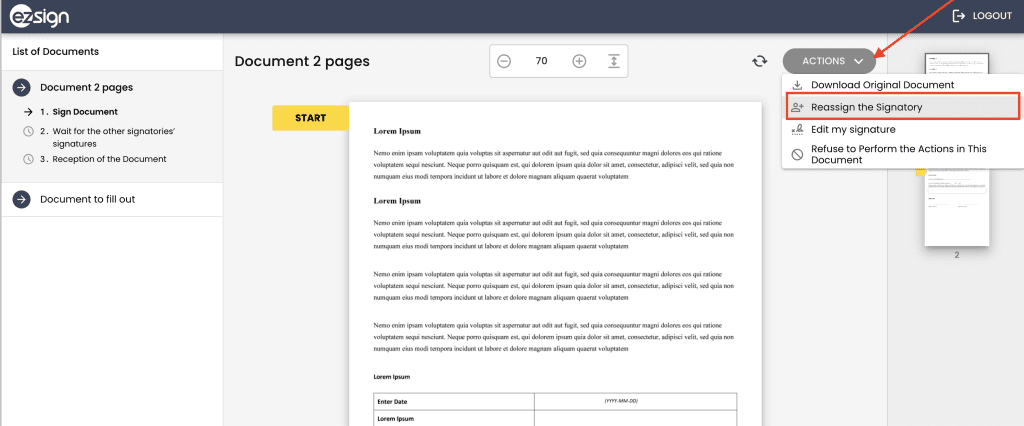
You can reassign a document if this option has been enabled by the sender.

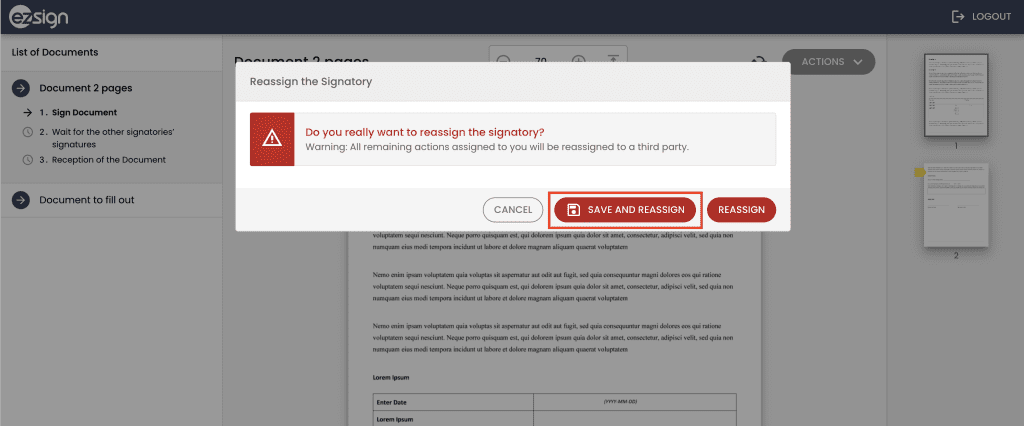
If you have received a document and have actions to complete, you can complete part of it or choose to reassign it entirely to another person. To do so, click the icon “Actions” in the upper right corner and select “Reassign the Signatory.”

To save information you have already completed or signed, click “Save and Reassign.”

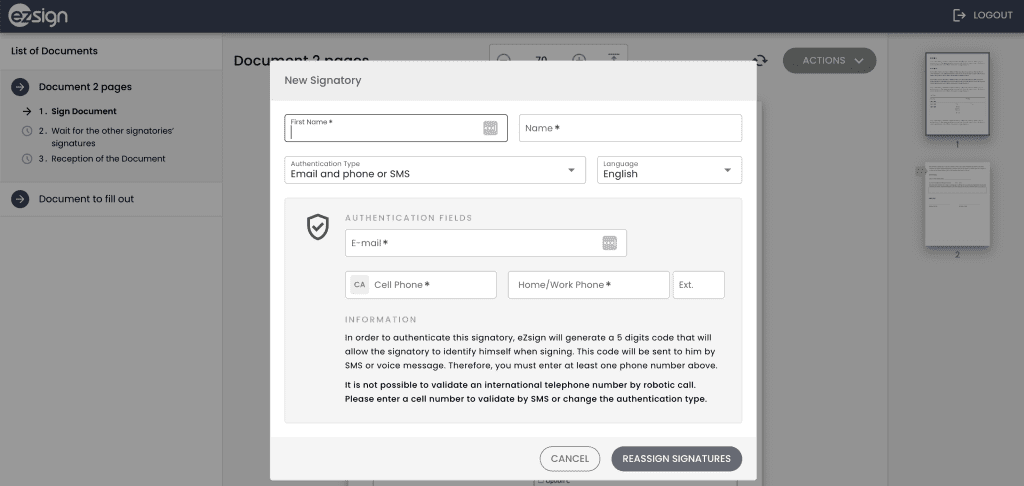
You will then need to enter the information of the person to whom you want to forward the request (name, email address, and, if necessary, phone number).

The document will be automatically sent to this new person to complete the remaining steps.

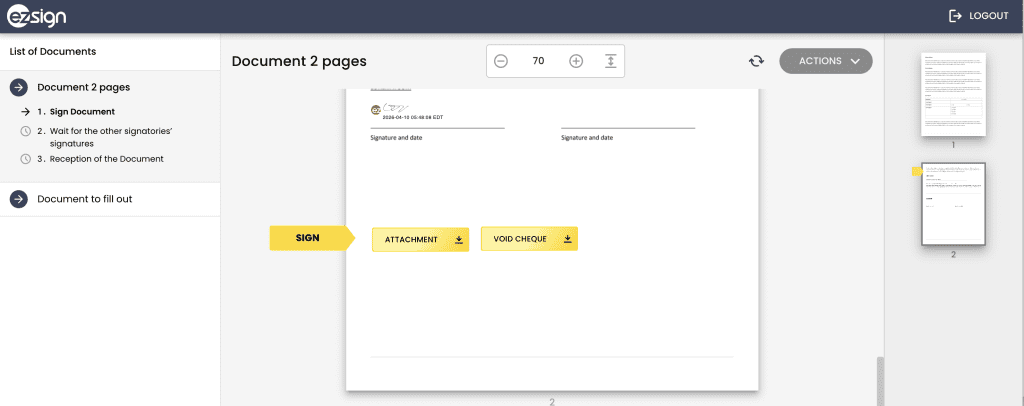
If the document sender asks you to add an attachment, you will see a yellow button labeled “Attachment” (default name) or a more specific name, depending on the sender’s chosen configuration (e.g., ID, void check, etc.).

Click this button to add your file from your computer. Once the file(s) have been added, confirm the submission.

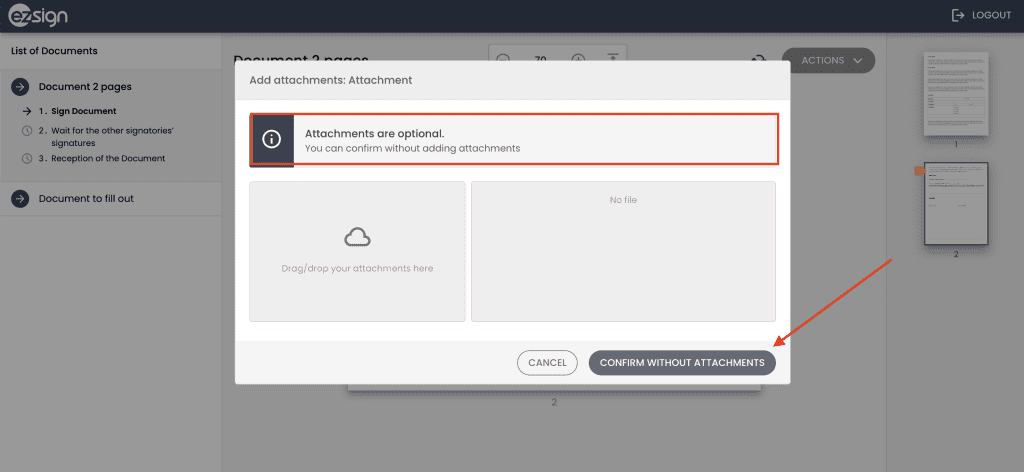
Note: Some attachments are required, while others are optional. Carefully review the displayed instructions.

If the attachment is optional, you can simply confirm without adding attachments.

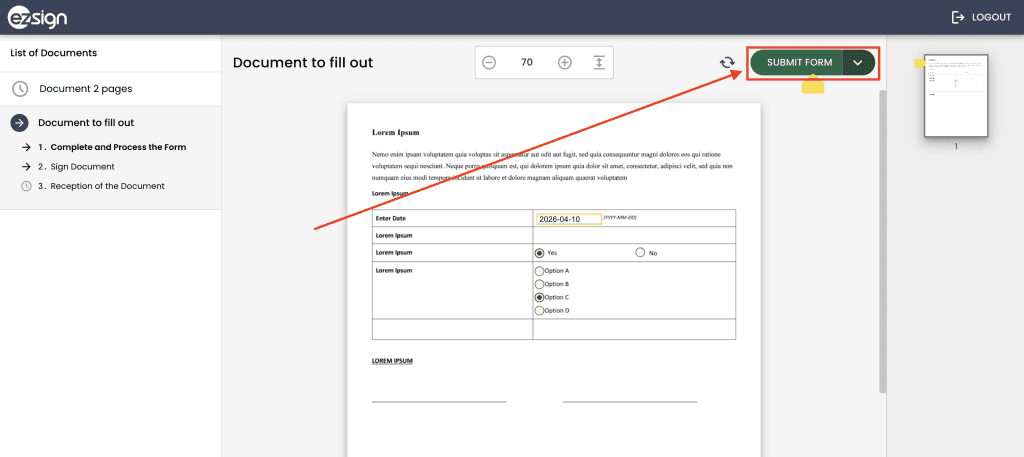
If the document you received requires you to fill in form fields (answers, checkboxes, text, etc.), you must complete this information before you can sign.

After completing the requested information, click “Submit Form.” This step is always mandatory:

  1. If a signature is required, the signature box will only appear after you have submitted the form.
  2. If no signature is required, this action will simply complete the document.

Note: If you don’t see where to sign, make sure you have filled in all the fields and submitted the form.

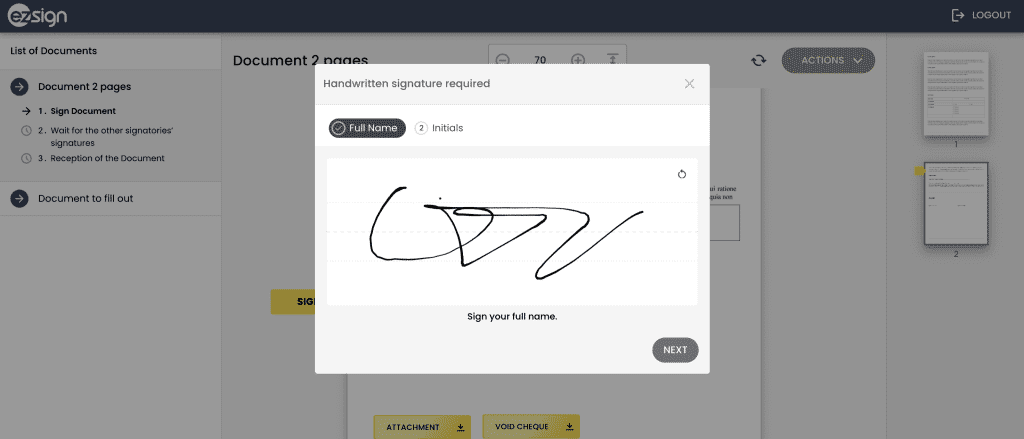
The sender of the document may require you to provide a handwritten signature.

In this case, the first time you click on the signature box, you will need to draw your signature and initials using your mouse or device (touchscreen, stylus, etc.), even if only one of these is required in the document.

Then click Next, and then Apply. After that, each time you click on a signature box, your handwritten signature will be automatically added. 

Troubleshooting

Stuck? We've seen it all.

The most common hiccups — and exactly how to fix them.

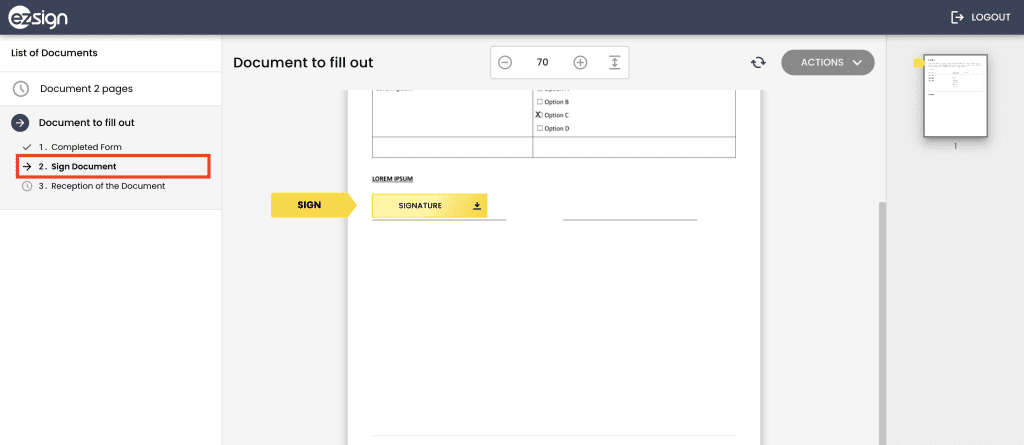
Have you submitted the form? 

1

If there are fields (questions, checkboxes, radio buttons, etc.), you must complete them all, and then click Submit Form (in the upper right corner). 

2

Submitting the Form is necessary to access the signature. 
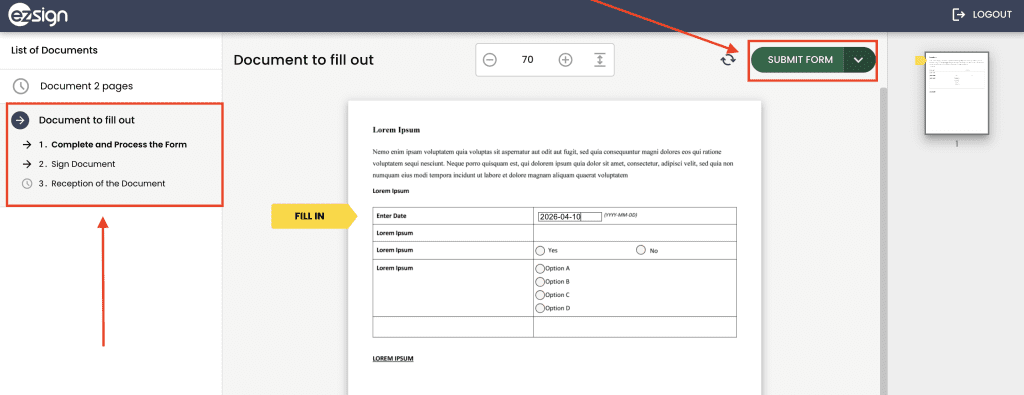
Check the left column

3

It clearly indicates the document's status: what is completed (you will see a green checkmark) and what remains to be done. 
Still Nothing?

4

Contact the document sender, the signature settings may be the issue. 

1

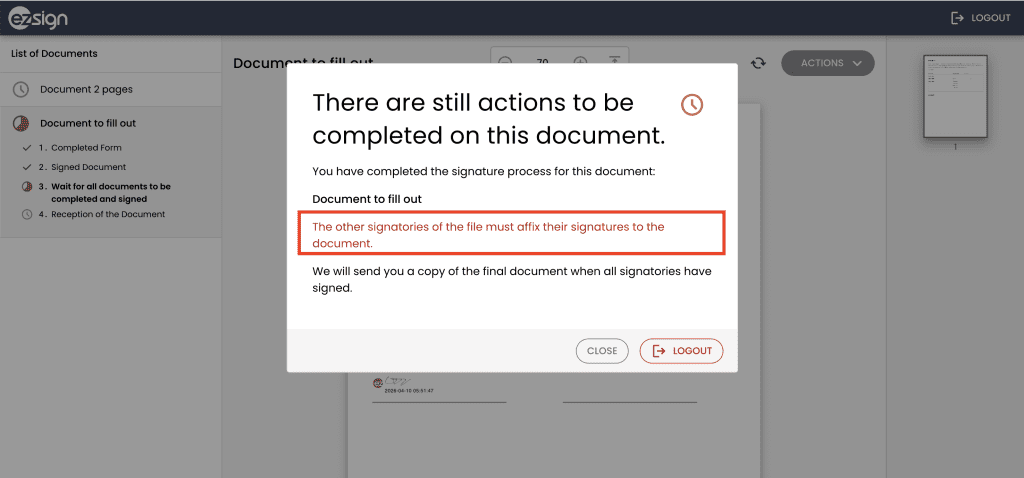
Check the left-hand column. It's possible your part is complete, but other signatories or stakeholders still have actions to complete. 

2

The left column clearly indicates the document status and the remaining steps.
Contact the document sender  

3

Depending on the sender's settings, no copy of the completed document may be sent to the signatories.

4

 If you're unsure, we recommend checking directly with the sender. 

If you filled in fields and everything seems to have disappeared when you return to the document, this is usually related to how you left the page.

Here are the most common causes:

1

Closing your browser (the “X” in the top right corner

If you close the tab or the browser (Chrome, Firefox, etc.), the information is not saved. 

2

Logging out without saving

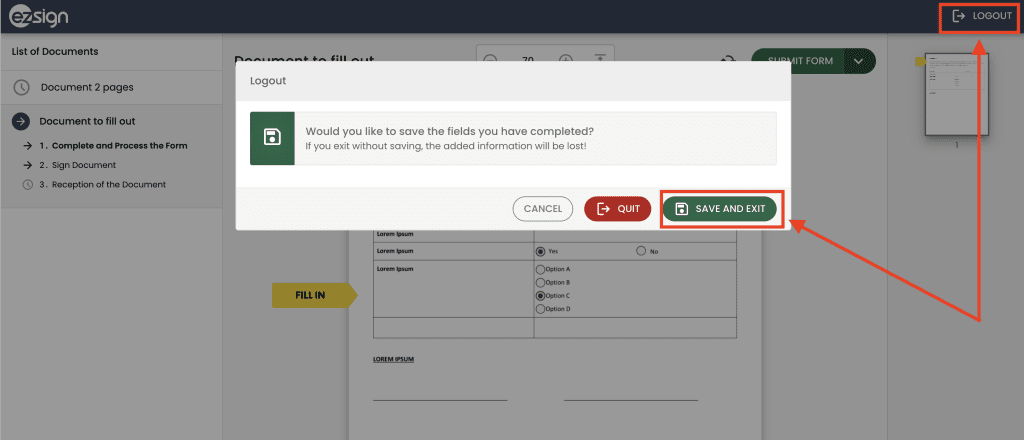
When you click “Log out” in eZsign, a pop-up offers you several options:

  1. Cancel
  2. Quit
  3. Save and Exit

If you click “Quit,” the entered data will be lost.

3

Tip to avoid losing your data 

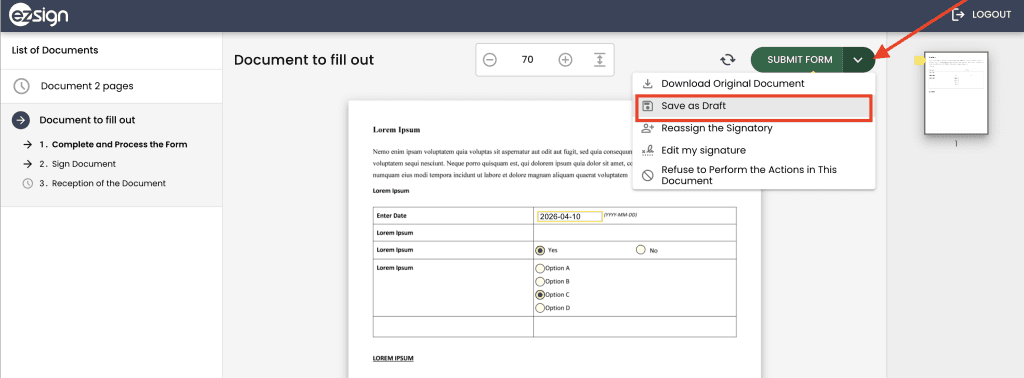
Options to save your progress at any time. You can then return later and pick up exactly where you left off:

  • Click on “Logout” and choose the “Save and Exit” option.
  • You can also click on the arrow to the right of the “Submit Form” button and select “Save as Draft” 

1

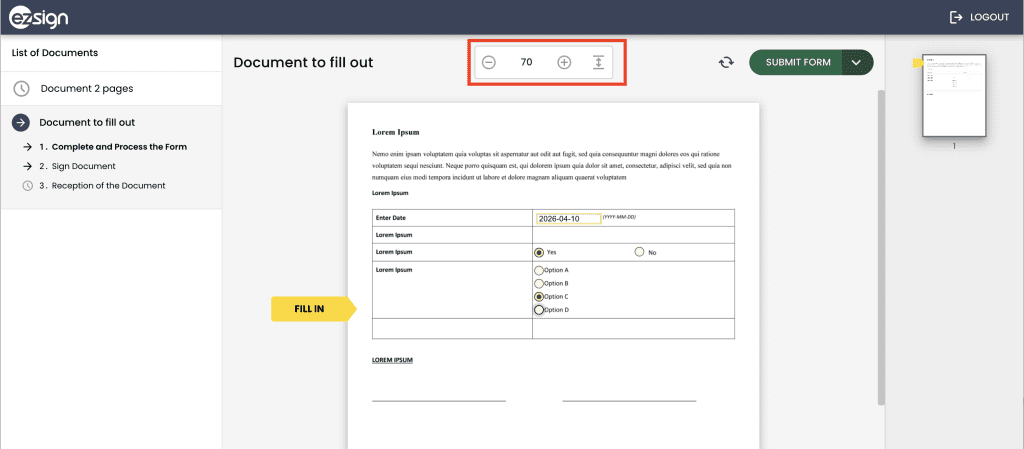
Adjust the zoom: Use the zoom tool located at the top of the document (in the center) to zoom in or out. 

2

Logging out without saving
When you click “Log out” in eZsign, a pop-up offers you several options:

  1. Cancel
  2. Quit
  3. Save and Exit

If you click “Quit,” the entered data will be lost.

3

Tip to avoid losing your data 

Options to save your progress at any time. You can then return later and pick up exactly where you left off:

  • Click on “Logout” and choose the “Save and Exit” option.
  • Follow the scroll bars: Use the scroll bars to navigate up and down and left and right.  

Depending on your device, screen size, and document format, these options will allow you to better view the content. 

In this case, it's very likely that your role is simply to review the document. 

1

Review the document.  

You simply need to familiarize yourself with the content. No signature or specific action is required.

2

Click on "Consultation Complete" 

Once you have finished reading, you can click on the “Consultation Complete” button in the upper right corner.

57M+

documents signed

99%

renewed last year. 

★★★★★

“Way easier than DocuSign”

CC

Chase Clifford

Wales Home & CHSLD Wales

Start your 30-day free trial - No card required

Send contracts and approvals — get them back signed in minutes. Used by 3,000+ Canadian organizations. Flat per-user price. Unlimited sends.


Your CFO will ask why you didn’t switch sooner.

✓ No surprise bills. Ever.

✓ Unlimited sends. One flat price

Human customer support

No credit card required.

L’envoi groupé vous permet de faire signer un même document à
plusieurs personnes en quelques clics. Chaque destinataire reçoit sa
propre copie personnalisée, avec son nom et ses informations.

Par exemple, vous pouvez envoyer un formulaire de consentement à
200 employés en une seule opération. eZsign crée automatiquement
200 dossiers distincts et suit chaque signature séparément.

Contact Sales

Ready to elevate your business with eZsign e-signatures? Our Sales team is here to help you explore the right plan for your needs and answer any questions you have.